
This guide will take you through the Communications area of iRecruit.
Contents
Communications
- To access Communications:
- Go to the Admin Portal configuration screen
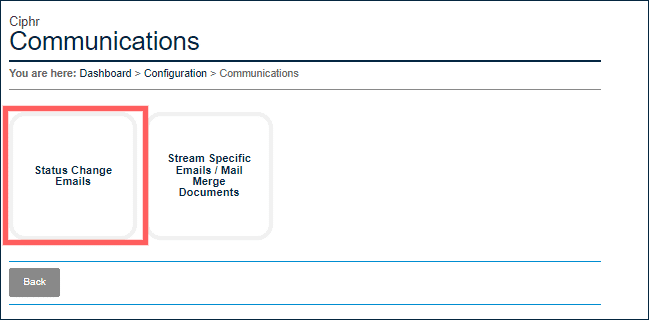
- Click on the Communications tile
Status change emails
- Status Change Emails are emails that are trigged when an applicant is moved from one specific workflow status to another. They can be sent to Applicants, Recruiters (Job Owner), or both
- To add a Status Change Email:
- Go to the Admin Portal configuration screen
- Click on the Communications tile
- Select Status Change Emails
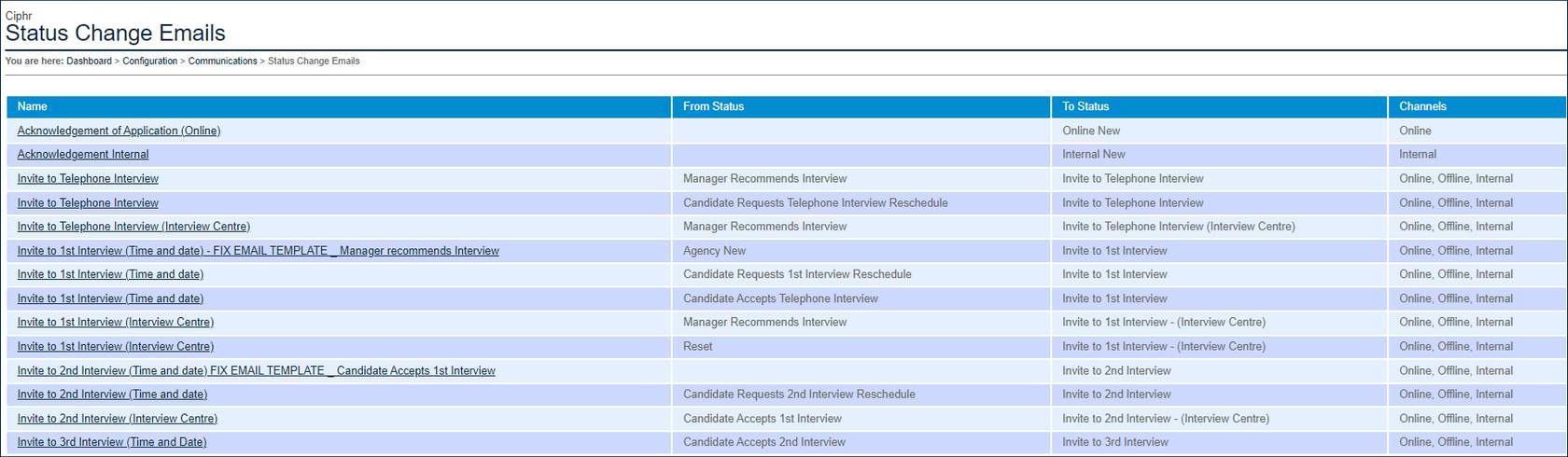
- You will see a list of the current status change emails configured to your system:
- To add a new Status Change Email, click the Add status change email button
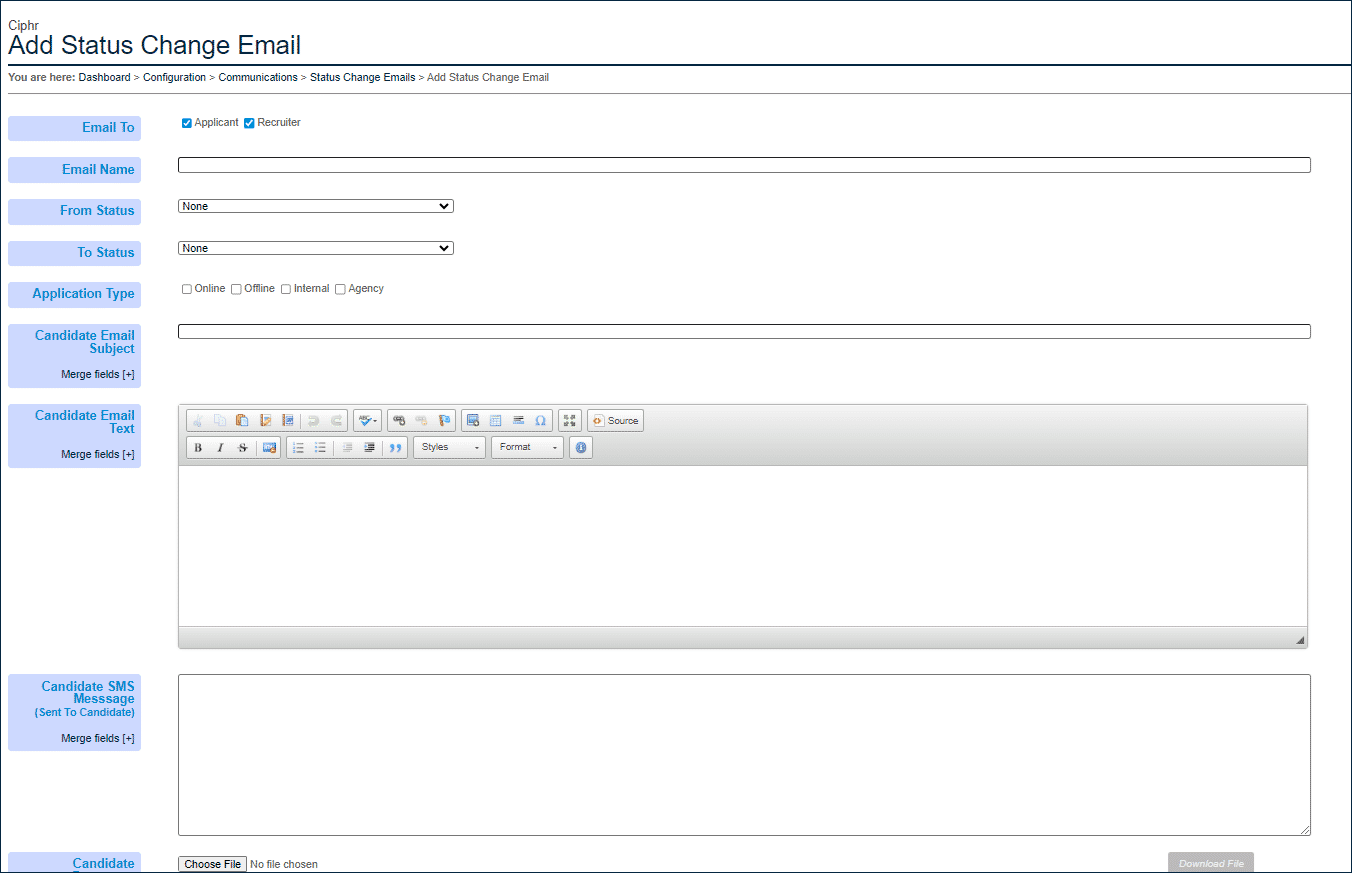
Enter the following information:
- Email To: Select Applicant, Recruiter or both
- Email Name: A name that is descriptive enough for you to know what the email is for
- From Status: From the picklist choose the Status that the candidate would be on, before the change is made
- To Status: From the picklist choose the Status that the candidate will be moved to
- Click Save
| Note: An example could be: from Online New to Reject from new |
- Application Type: Choose the Applicant Type(s) that the email should send to - Online, Offline, Internal, Agency
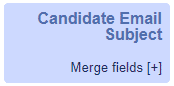
- Candidate Email Subject: Key in the subject line required. You can also add Merge Fields by clicking the [+] to drill down on Candidate Email Subject Merge fields
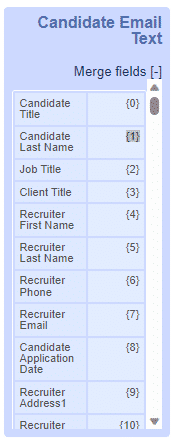
- The list of Merge Fields will then drill down and display the available fields
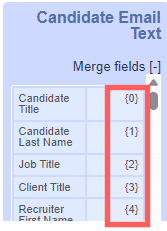
- To add a Merge Field to the subject line, click onto the bracketed number that corresponds to the desired field and drag to the position in the subject line
- Next enter the text that should appear in the main body of the email, once again Merge Fields can be used in the same way as above
|
Note: You will notice that the body of the email has a significant larger list of Merge Fields available 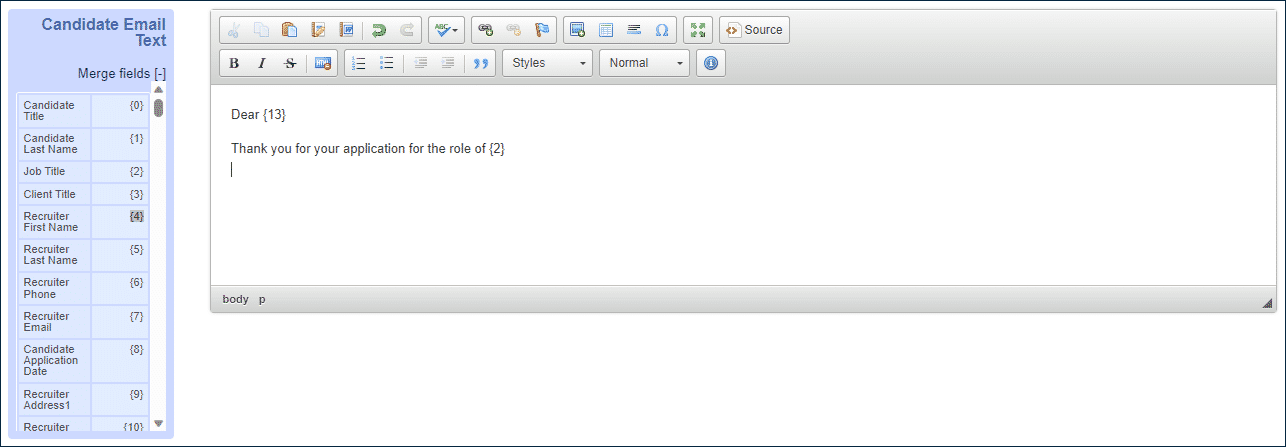 |
- You may wish to add a company logo, or other image to the email. In order to do this, you must first obtain the image URL from where it is hosted
- For example, to add the Ciphr Logo, then I would visit www.ciphr.com and right click on the logo image, and click Copy Image Address
- Return to the Admin Portal and in the toolbar click the Image Icon
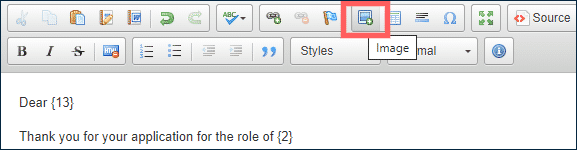
- In the URL field of the Image Properties window, paste the saved image address (Ctrl & V)
- The size and alignment of the image can be edited, along with a border if required, by changing the values:
- Width
- Height
- Border
- H Space (horizontal padding around the image)
- V Space (vertical padding around the image)
- Align
| Note: Values are in Pixels |
- Click OK
- Your image will now be visible in the body of the email
- If required, it is also possible to add a file attachment to be sent with the email, by clicking Choose File and browsing to find and add your attachment.

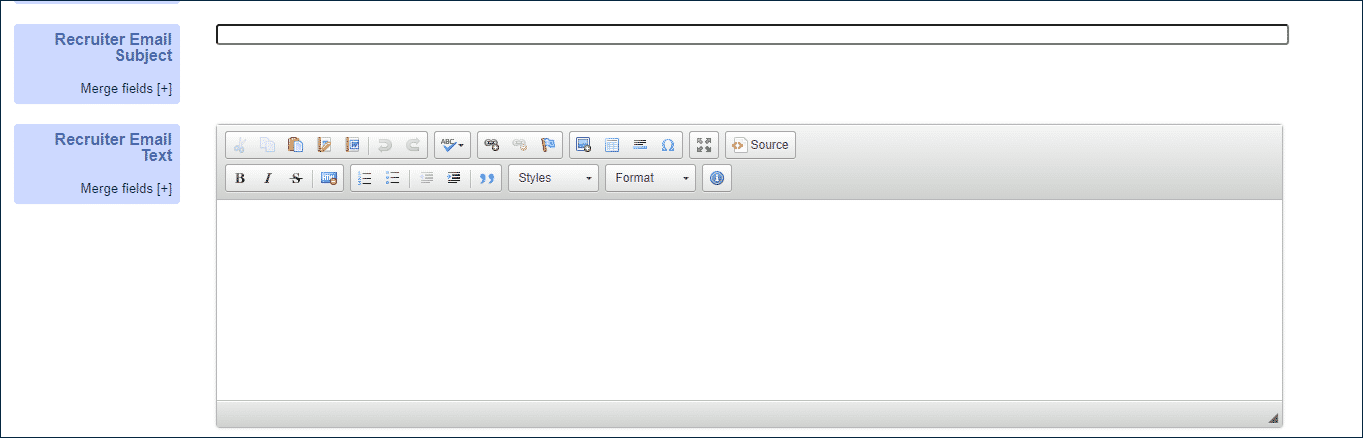
| Note: If you have selected to send both an Applicant and a Recruiter email, repeat the steps above in the Recruiter Email Section |
SMS
- If you use the SMS message configuration within iRecruit, then text for SMS can be added for both applicant and recruiter as required

| Note: Please be aware that SMS supports a maximum of 160 characters. You are able to create messages up to 918 characters in length, however this will be split into multiple SMS messages (1 credit will be used for each 160 characters) |
Stream specific emails
- Stream Specific Emails, are emails that are triggered by the iRecruit system when an action takes place in the system that doesn’t not involve the change of a candidate's status. Ie a Job Approval Workflow email, Send to a Friend or Job Alert email
- You will not be required to set up any new Stream Specific Emails as they will have been configured during implementation by your consultant, but you may wish to amend the wording
Amending a stream specific email
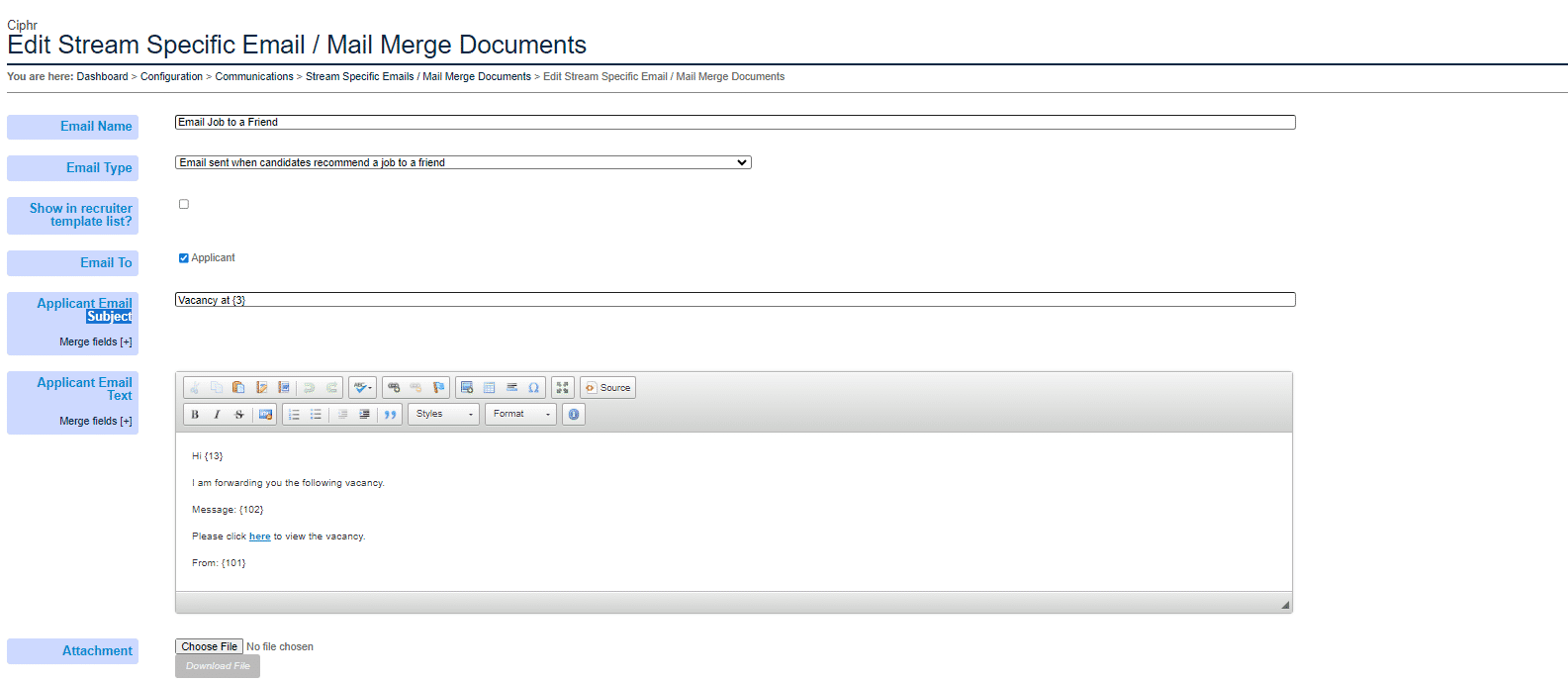
- Click the Name of the email that you would like to edit
- Make amendments as required in the Applicant Email Subject and Applicant Email Text fields
- Click Save
Footer
Comments
0 comments
Article is closed for comments.