
This help guide will show you how to create and update grade rates and ranges.
Contents
Introduction
- The Job and Pay record will reflect the pay and pay basis for an employee along with details of the job title and hours etc
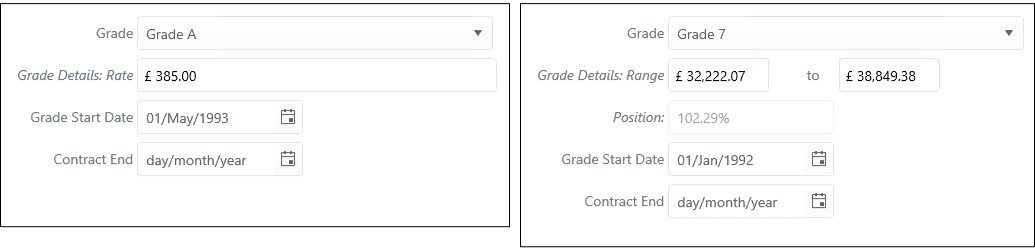
- Grades can be based on a Rate or on a Range or a Spine
Grade code tables
- Go to the following area:
- Latest (left-hand) menu: Data Management > Code Tables
- Pre-2025 (top) menu: System > System Administration > Code Tables
- Choose the Job and Pay group and Grade Details
- The screen will display all the grade code tables and will show the pay basis, and pay scheme for each grade
-
Clicking on the grade name will display the details for that grade
Creating a grade
- Go to the following area:
- Latest (left-hand) menu: Data Management > Code Tables
- Pre-2025 (top) menu: System > System Administration > Code Tables
- Choose the Job and Pay group and Grade Details
- Click Insert New Record
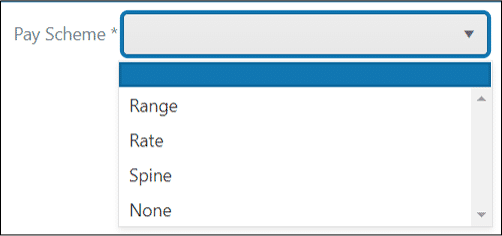
- Create a Code and Description for the grade and then select the Pay Basis, Pay Frequency, Currency and the Pay Scheme
- You can use the Sort Order as a means of sorting the table listing in the Summary view
- Rounding determines the level of rounding on the monetary values
- Click Update. A further tab will be displayed for completion which is dependent on the Pay Scheme that was selected when defining the grade
Rate based grades
- There are two tabs of information in relation to rate based grades
Updating a grade rate
- Go to the following area:
- Latest (left-hand) menu: Data Management > Code Tables
- Pre-2025 (top) menu: System > System Administration > Code Tables
- Choose the Job and Pay group and Grade Details
- Click on the grade name to be updated and then select the Grade Rates tab
- Click Add New Record
- A new row will be inserted where you can create the review date, enter the hours and the rate or minimum
- Once this has been created click Save changes
Applying the rate change to Job and Pay
- Click Update Job and Pay
- The next alert will require you to confirm that you want to Update. If all the information is correct click OK
- From the list of change reasons select the one that you want to appear in Job and Pay as the reason for the change
- Click Accept
- The Job and Pay records for employees on this grade will have a new entry made reflecting the change that has been made with the associated change reason
- Click OK
Range based grades
- There are two tabs of information in relation to range based grades
Updating a grade range
- Go to the following area:
- Latest (left-hand) menu: Data Management > Code Tables
- Pre-2025 (top) menu: System > System Administration > Code Tables
- Choose the Job and Pay group and Grade Details
- Click on the grade name to be updated and then select the Grade Ranges tab
- Click Add New Record
- A new row will be inserted where you can create the review date, enter the hours, the rate or minimum, the mid point for the range and the maximum for the range
- The mid point represents the value that is half way between the minimum and the maximum for the range
- Once this has been created click Save changes
|
Notes:
 |
Footer
Comments
0 comments
Article is closed for comments.