
This help guide will take you through the Entitlement Code Table management, which can be used to allocate specific Absence Entitlement balances to eligible employees such as charity/volunteering days or study leave.
Contents
- Introduction
- Absence code
- Absence entitlements
- Bulk change
- Viewing and using the entitlement
- Removing absence entitlements
Introduction
There is an optional piece of functionality which customers can have added to their HR system which allows different categories of Absence Entitlement to be set up and allocated to specific groups of employees, and then Time Off booked against those categories.
Organisations may choose to use this for a variety of purposes, such as:
- 3 days of study leave per annum for those completing a qualification
- 2 volunteering days for everyone per annum
| Note: You can set up as many Absence Entitlement categories as your organisation requires and each employee can have as many entitlements as needed. |
Absence code
- Firstly you need an Absence Code that you will record the Entitlement against
- Go to the following area:
- Latest (left-hand) menu: Data Management > Code Tables
- Pre-2025 (top) menu: System > System Administration > Code Tables
- Select the Absence Group and then Absence Codes
- Create the code type as required. In order for the code to be accessible via self service you will need to set the appropriate Self-Service Restriction (eg No Restrictions for employees to be able to request). For more details on Absence Codes please see the linked guide.
- You can create multiple codes to attach to your Entitlement if required
| Note: The Holiday? slider would NOT normally be enabled for Entitlement codes unless you want the amount to be deducted from the Holiday balance as well as the Entitlement balance. |
Absence entitlements
- Go to the following area:
- Latest (left-hand) menu: Data Management > Code Tables
- Pre-2025 (top) menu: System > System Administration > Code Tables
- Select the Absence Group and then Entitlement
|
Note: If you cannot see the Entitlement Code Table listed then please check that your User Role has access via:
Select your user role > Code Tables If it's not listed there either please contact Customer care to add the Entitlements functionality for you. |
- Create the Entitlement as required, select whether the absence will be recorded in Days or Hours and link it to the previously created Absence Code(s)
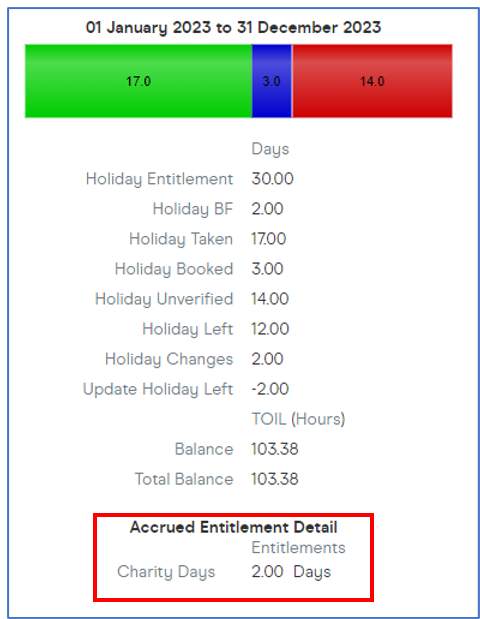
- Use the Show in Summary slider to choose whether you want the Entitlement to display a balance on the employee's (Book & View) Time Off page in the right hand summary bar, once an amount has been allocated (next step)
-
The Absence Entitlement then needs to be allocated to the eligible employees. This can be achieved using the Bulk Change functionality
Bulk change
- Entitlements must be allocated to employees via Bulk Change
- Go to the following area:
- Latest (left-hand) menu: Data Management > Bulk Change
- Pre-2025 (top) menu: People Admin > Tasks > Bulk Change
- In Step 1 create the subset of employee records that you wish to allocate the entitlement to
- In Step 2 of Bulk Change choose Field and select the Entitlement Total field to be changed, and then select the Entitlement it is to be changed to and enter the Entitlement Total value of days or hours you wish to allocate to the employees
- Click Finish and the changes will then be made and a report, which can be exported as required, presented on screen
|
Notes:
|
Viewing and using the entitlement
- The Entitlement(s) can be viewed in the Summary area on the right hand side of the (Book & View) Time Off page (if it was selected to Show on Summary on the Entitlement Code)
- Time off can be booked using the absence code(s) corresponding to the entitlement and the value of that entitlement will decrease accordingly where the date(s) fall in the current Holiday Year
- Absences will be sent and subject to the usual verification process
|
Notes:
|
Removing absence entitlements
- To clear employee balances follow the steps in the Bulk Change section but set the amount to 0 and this will remove the Entitlement from the employees' records (shown in the Summary on the right hand side of the (Book & View) Time Off and Absence Calendar/Planner pages)
To delete the Absence Entitlement code entirely
- If you wish to delete the Entitlement Code completely from the Code Table, you will first need to ensure there are no employees with a balance related to the Entitlement by following the previous step above (include Leavers in your Subset to ensure all balances are removed)
- Next, go to the following area:
- Latest (left-hand) menu: Data Management > Code Tables
- Pre-2025 (top) menu: System > System Administration > Code Tables
- Select the Absence Group and then Entitlement
- Click on the code you wish to remove
- You will see a Delete button to remove the code. The Delete button will not display where there are any employees with an associated Entitlement balance
Footer
Comments
0 comments
Article is closed for comments.