
This guide will show you the Bulk Status Change action in iRecruit that enables you to move multiple candidates from one Status to another in one go.
Contents
Introduction
-
Bulk Status Change can be applied in one of two ways:
- For multiple Jobs: My Candidates Tab > Candidate Options
- For a specific Job: My Jobs Tab > [select Job] > Job Options Menu
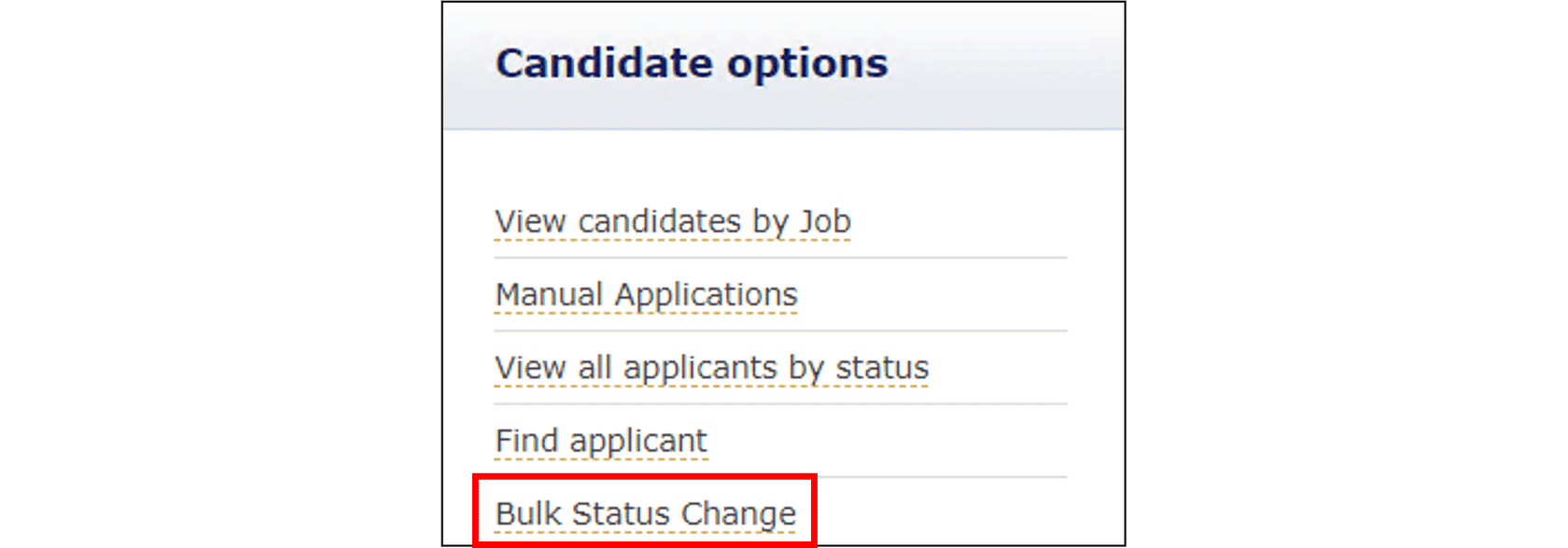
Candidate Options menu
- In the Candidate Options menu click Bulk Status Change
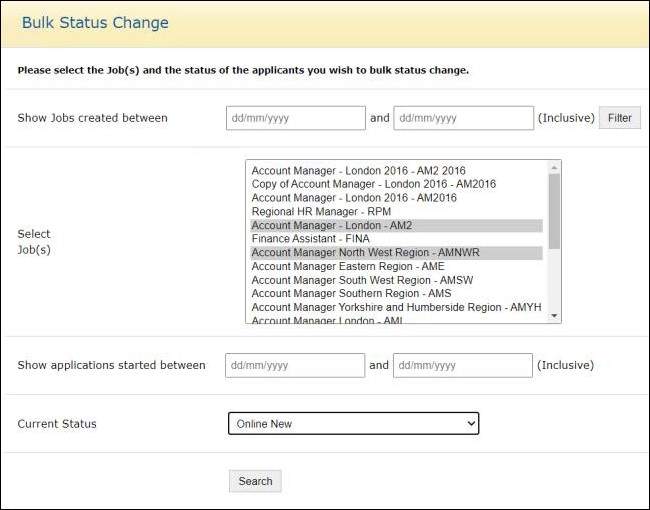
- The screen presented will enable you to refine your selection through selection criteria
- Show jobs created between – will restrict the list of jobs to just those that meet the date criteria
- Select the Job or Jobs that you wish to use the Bulk Status Change on
- Filter applications using the Show Applications started between to narrow the applications that will be selected
- From Current Status select the status that you wish to filter the candidates from. Click Search. You will be presented with a list of candidates who have applied for that particular Job or Jobs and those candidates who are at that particular status
- Select the Status that you wish to move the Candidates to and an email template will appear (if your system has been configured to do so in the Admin Portal) on the screen relevant to that Status Change, ie Reject from New, depending on the Status change you can select the Reason for Change
- Select the Candidates affected by this change by ticking the Select box against each Candidate. In clicking the Change Status, the system will move those Candidates from their current status to the status you have selected them to move to
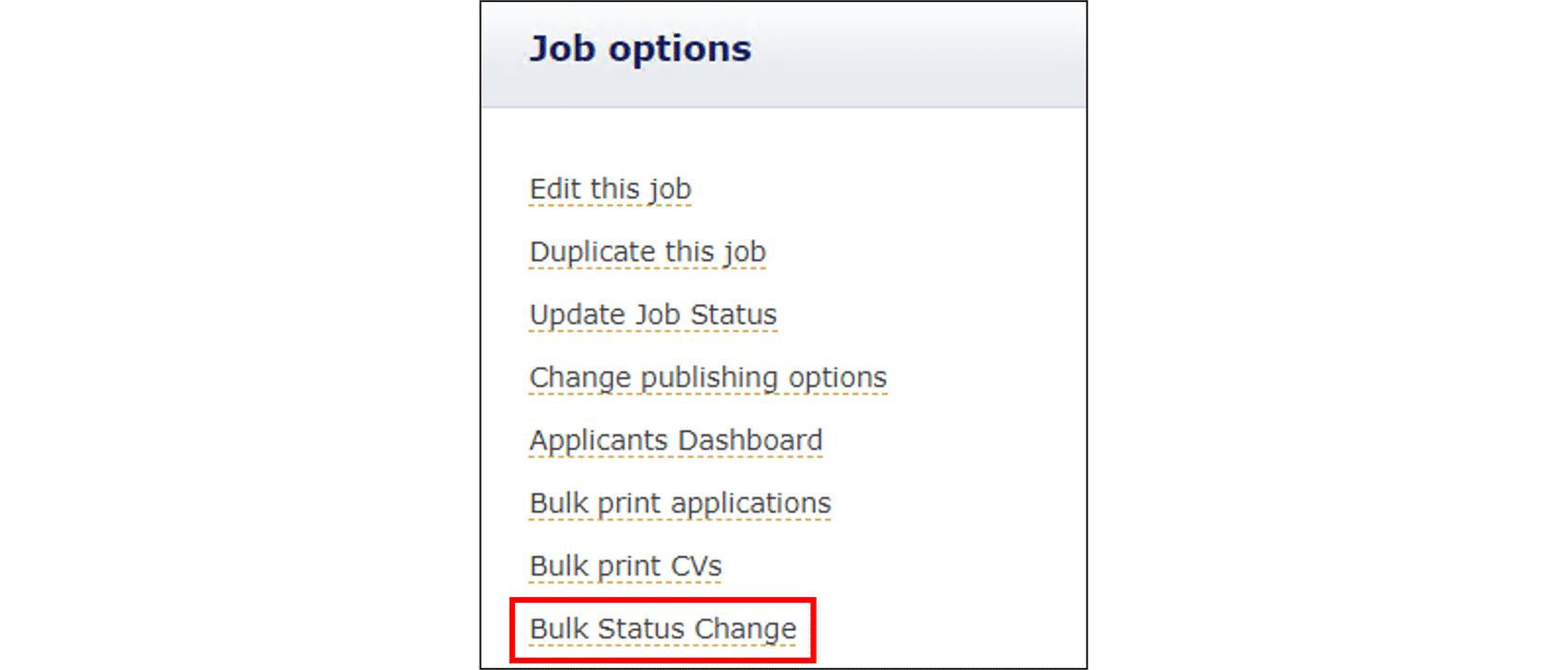
Job Options menu
- In the Job Options menu click Bulk Status Change
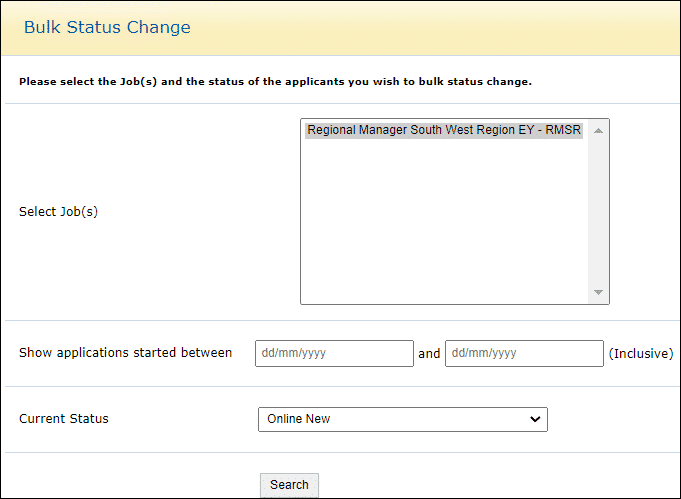
- You will have already selected the job where you wish to carry out the Bulk Status Change
- Filter the selection using the Show applications started between
- From the dropdown list select the Current Status that you wish to change
- Click Search
- Select the Status that you wish to move the Candidates to and an email template will appear (if your system has been configured to do so in the Admin Portal) on the screen relevant to that Status Change, ie Reject from New, depending on the Status change you can select the Reason for Change
- Select the Candidates affected by this change by ticking the Select box against each Candidate. In clicking the Change Status, the system will move those Candidates from their current status to the status you have selected them to move to
| Note: Status levels are configured in the Admin Portal. |
Footer
Comments
0 comments
Article is closed for comments.