
This help guide will show you how to populate the Equal Opportunities fields in Personal Details in your HR system.
Contents
- Introduction
- Sex
- Marital Status
- Nationality and Nationality 2
- Ethnic Origin
- Disability Monitoring
- Gender Identity and Gender Reassignment
- Religion or Belief and Sexual Orientation
Introduction
On the Equal Opportunities tab of the Personal Details page there are a number of fields which can be used to record equal opportunities information. Some of these fields are populated from lists generated by a code table and others from Pick Lists.
This information guide provides an overview of the fields and where the information comes from.
Sex/gender
- Select from the dropdown list of options presented. This list is pre-configured in HR and the contents are generally not changed as values are linked to payroll and HMRC
Martial status
- The options in this list come from the picklist – MARITALSTATUS
- Items can be added to this pick list via Data Management > Configure Picklists
| Note For more details on Picklists and the MARITALSTATUS picklist, see the related help guides |
Nationality and nationality 2
- The options in this list come from the Countries code table
- Items can be added to code table under the People group via Data Management > Code Tables
- The same list is used for both Nationality fields if you wish to record a dual nationality
| Note: For more details on the Countries code table see the linked guide |
Ethnic origin
- The options in this list come from the code table – Ethnic Origin
- Items can be added to this code table under the People group via Data Management > Code Tables
| Note: For more details on the Ethnic Origin code table see the linked guide |
Disability monitoring
- The options in these lists come from the code tables – Disability Confirmation, Disability Assessment and Disability Option
- Items can be added to this code table under the People group via Data Management > Code Tables
- If Yes is selected for the initial disability question then other drop down fields, again populated from the codes table, are presented
- The Disability Notes field can be used to capture extra information up to a limit of 2000 characters
| Note: For more details on the Disability code tables see the related help guide |
Gender identity and gender reassignment
- Both of these fields are populated through selection from an attached Picklist. The Picklist for each field first needs to be created and then attached to the relevant field
- To create the Pick List go to Data Management > Configure Picklists
- Click Insert New Record and then create a Code for the Picklist
- Then click Add New Record to populate the contents of the Picklist – see the below examples
- Click Update
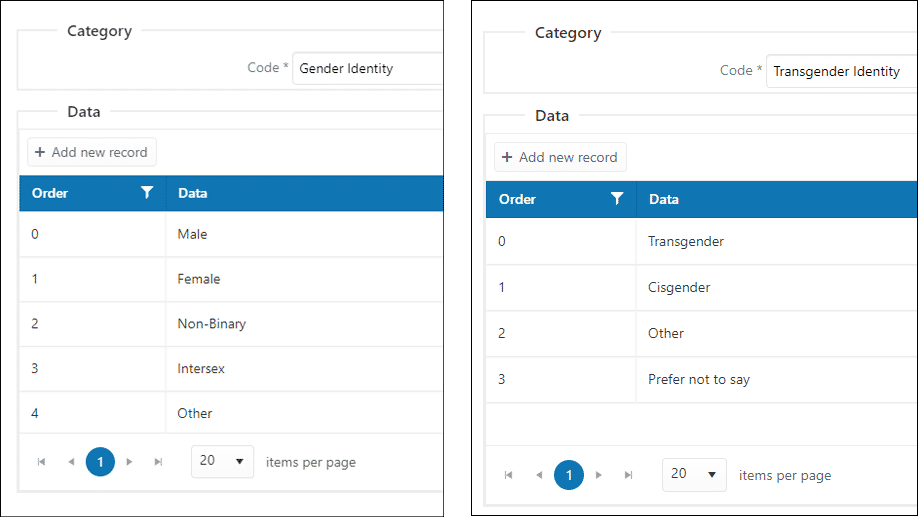
| Note: For more details on the creation of Picklists see the related help guide |
- The Pick Lists must then be attached to the field
- Go to System Configuration > System Configuration
- Filter or scroll the list of options to locate the fields to which the Picklists should be attached
- They are in the Group Name of Equal Opportunities
- Click in the Value alongside the row that is being edited
- From the drop down list of options select the Picklist name that you have created
- Click Update
- That list will now be attached to the field and will present the selection options as defined in the list
Religion or belief and sexual orientation
- Both of these fields are populated through selection from an attached Pick List. The Pick List for each field first needs to be created and then attached to the relevant field
- To create the Pick List go to Data Management > Configure Picklists
- Click Insert New Record and then create a Code for the Picklist
- Then click Add New Record to populate the contents of the Picklist – see the below examples
- Click Update
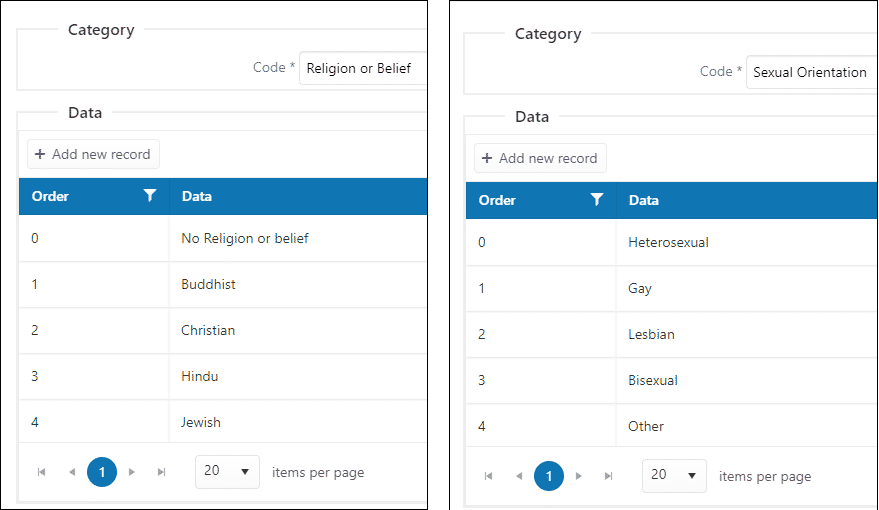
| Note: For more details on the creation of Picklists see the related help guide |
- The Pick Lists must then be attached to the field
- Go to System Configuration > System Configuration
- Filter or scroll the list of options to locate the fields to which the Picklists should be attached
- They are in the Group Name of Equal Opportunities

- Click in the Value alongside the row that is being edited
- From the drop down list of options select the Picklist name that you have created
- Click Update
- That list will now be attached to the field and will present the selection options as defined in the list
Footer
Comments
0 comments
Article is closed for comments.