
This guide is for employees who want to view their Payslips, P60s and P45s using a mobile device.
MyPay gives you quick, easy access to your pay information. You can:
- view your current and previous payslips
- download all your payslips at once
- check your tax code
- access your P60s and P45s
Accessing MyPay
- To open MyPay, click on the 3 lines (burger) to open the menu
- Select the icon in your HR system menu
| Note: Your organisation may have given this icon a different name, such as Payslips |
Payslips
You will then be taken to the Payslips screen where you can:
-
View Payslips:
view your current and previous payslips, and filter by date range -
Download all:
save all your payslips as a zip file in one click -
Hide sensitive data:
switch this on to keep personal information hidden, even next time you log in
|
Payslip details not showing? If your payslip information isn’t displaying, it’s because sensitive data is hidden by default when you log in. To show it, select the eye icon above your profile button, as shown below. |
Tax Documents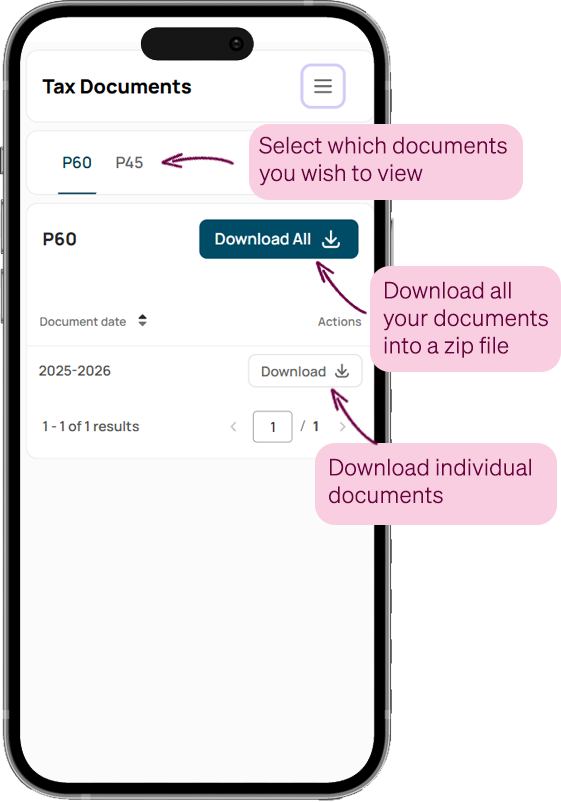
Your tax documents are stored here for easy access.
To access them:
- Click on the 3 lines (burger) to open the menu
- Select Tax Documents
From this page, you can:
- P60 / P45 tabs: switch between document types
- Download: save individual documents
- Download All: grab everything as a zip file in one click
Related articles
Footer
Comments
0 comments
Article is closed for comments.