
This guide explains how to create template letters and documents in HR, which can then be merged with employee data.
Contents
Creating a new letter template
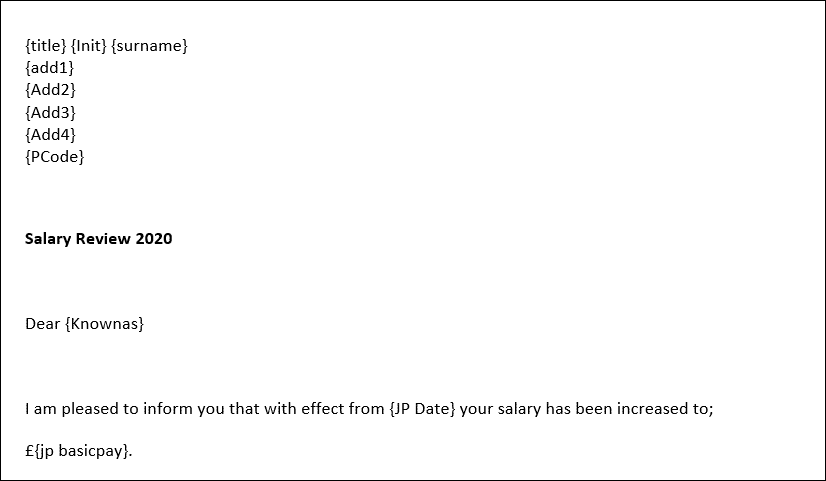
First create the letter document
- Type the main “non-changing” letter content in your word processing tool just as if you are creating a general letter
- Any “variable” information, that will come from HR needs to be enclosed in curly braces – placeholders like these { }
- You’ll need to ensure that the name that you type inside the braces will be recognisable as you will need to map your placeholders to the fields in HR
- Save and close the file
Next create the template in HR
- Go to Employee Communications > Letter Library & Distribution
- The screen will display any templates that already exist
- Click Insert New Record
- Select the Template Area – the area you choose should be reflective of the data to be used in the letter, eg a future salary increase letter should use Job and Pay Details
| Note: Safeguarding is not currently available in letter templates so should be disregarded. |
- Use Upload Template to select the letter template that you have already created
- Go on to create a Template Name and a Description. These are free text fields so should be reflective of the letter content and act as a reminder when you come to use the letter
- Choose the Category that you want documents, when they are run for an employee, to be stored against in the Personal Documents area
- Type any Template Notes and then click Update
- You will then be taken into a further screen where you will be able to map the placeholder fields in your letter with the equivalent field in HR
|
Tip: When selecting the template area, consider the fields you require to help you choose the best option. All template areas contain a link to the Personal Details table, so even if you choose a different area such as Job and Pay, you will still be able to access name and address etc. Personal Details also contains some current (today’s date) Job and Pay details which may be sufficient for your letter. Here are some tips for different letter scenarios:
|
Map the fields
- The screen will display the name of the placeholder from your letter and the number of occurrences it appears in the letter
- Click on Fields at the end of the row. This will take you into a mappings box
- Type what you think the field might be called in HR and a list of available options will be presented
- From the list presented select the name of the field that you want to map to the placeholder in your letter
- Names listed with a downward arrow indicate a table that can be expanded by clicking on it.
- Names with a grid icon indicate a table linked to the master table (the master table is dependent upon the letter type: ie in this example it’s Job and Pay Details)
- Names with a link icon indicate a field that can be added to the letter
- Continue in this manner until all the placeholders have a matched field
- Click Update
Letter template properties
- The next stage is to configure the template with any default information in the use of this letter and to enable the template
- Template Name and Template Notes – these fields will be populated from the information you set up when creating the template
- Document Defaults – when documents are created using this template, they will take on the characteristics and information from this section
-
Email Addresses – enter any addresses that should always be on the recipient list for documents created from this template. You can Allow the user to enter any email address
when sending via email by enabling the slider which means you can type in email address(es) when the letter is being distributed (via Email as an Attachment only) - Email Distribution Defaults – if you wish to apply your organisation branding to your letter emails enable the Use template slider and select Default Letter Template (the other templates relate to other areas of the system so are not relevant for letters). Then populate the Subject and Body fields with any default text for distribution by email
| Note: The Default Letter Template shares the same layout and styling as system verification emails and cannot be edited in the system. |
- Template Additional Details – in this area the template slider must be set to Enabled for the letter to be available to use (green padlock)
- Page – is a reminder of the template area the fields are mapped to and is where the Communication button will appear (if security access granted)
- Security - should users be enabled to use this template on their own record? Such as a pay review update for all staff that could include the HR user who is processing the letters
- Once you have determined the template properties click Continue
- You will receive a message prompting you to configure the security on the template. Until this is done the template will not be visible in the letter library
- Click Configure Security to grant letter access - see linked guide for more details
- Once access is granted you can return to the letter library to edit your letter as needed or to send letters
Footer
Comments
0 comments
Article is closed for comments.