
This guide is for customers during their HR implementation project who have the enhanced notification package. It explains how to complete your notifications scoping document, to configure automated email alerts in your HR system.
For assistance outside of your HR implementation project such as amendments to notifications, please raise a ticket to request additional services.
Contents
Overview
What can I change?
- Editable values are highlighted
within the document by curly braces {} - Changes to other sections of the document should be avoided except the following which can be amended:
- condition
- attachment
- subject
- body fields
Global Configuration
- Reoccurring variables that are used throughout notifications:
- Entity: The HR entity these Notifications apply to
- HR/IT/Payroll email address: email for this team
- Test Recipient: Any Notification set as “Test” will trigger to this email
Merge Fields
- A Ciphr HR input field wrapped in % symbols (eg %KnownAs% for employee’s first name) that pulls record values, like showing "John" instead of a generic "Hello!" in email templates
- The fields available to you are highlighted in the glossary at the end of the functional requirements document (FRD) which is provided during your implementation project
The Template
Recipient
- Each Notification has a fixed recipient which is outlined in the notification’s title eg ‘Starter email – Manager’. This notification will be sent to employee’s manager based on HR reporting lines. Where no manager exists, it will send to HR
- Each notification comprises of 4 sections outlined below and colour marked in the image on the right:
1. Notification Settings (marked in red)
2. Notification Email Subject Line (amber)
3. Notification Email body text (green)
4. Notification UAT Log (blue)
Notification settings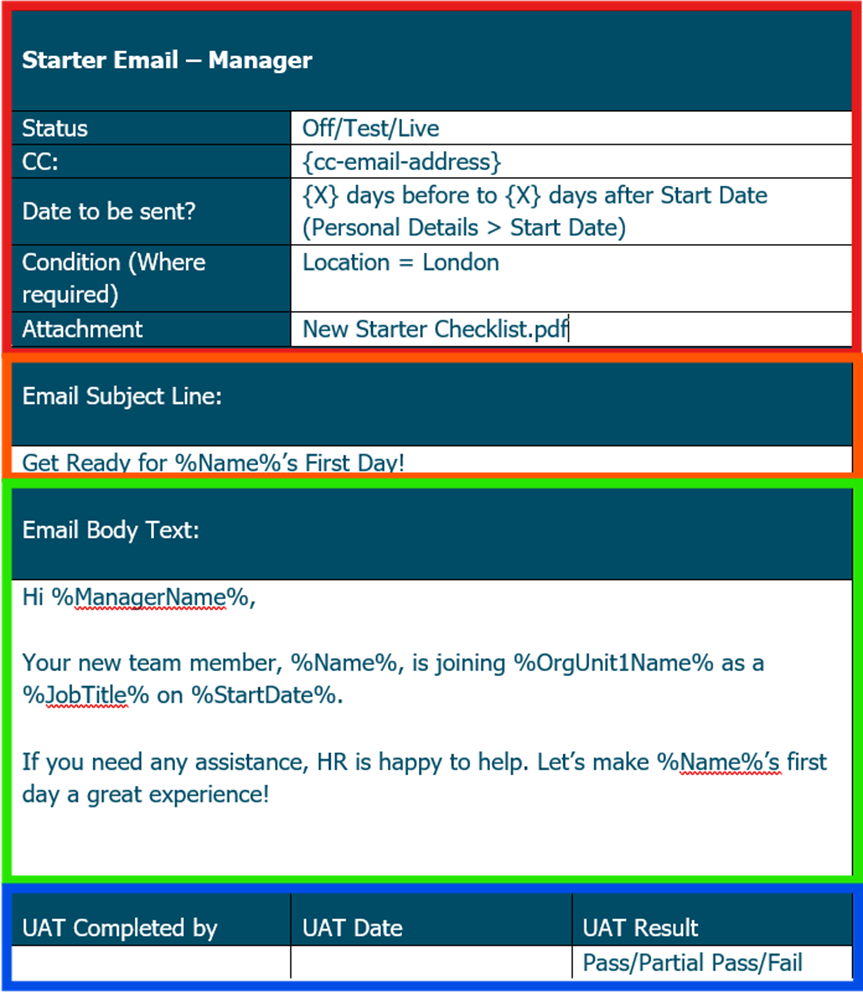
- This section defines notification status (whether it's in off, live or test mode), CC recipient eg {HR email}, Date email to be sent, eg:
- ’{30} days before to {0} days after Start date’
- Any conditions such as ‘Location = London’, and provide details of any attachments to be sent with
the notification
Notification email subject line
- The subject line of the email being sent. It can include text and HR merge fields (values in % from the available glossary in your FRD)
Notification email body text
- The body text of the email being sent. It can include text and HR merge fields (values in % from the available glossary in your FRD)
Notification user acceptance testing (UAT) log
- This section is for use during your UAT period to log name of the person testing the notification, date and result (pass/fail etc)
| Note: A notification will not be switched to live during your implementation unless the status is updated accordingly. |
Notification Demo
Example
- This notification spec will output the email below where ‘Kiran Mann’ is manager of ‘Ciphr Test’, an employee based at London location
- There are no CC recipient(s) for this email and the email is set to trigger exactly on Ciphr Test’s Start date with no attachment
Footer
Comments
0 comments
Article is closed for comments.