
This guide explains how to use filter forms which can be used in Reports and Letters.
Contents
- Overview
- Job and Pay Point in Time filter
- To save a Filter and reuse a Saved Filter
- Offsetting
- Absence Costs - Using offset dates
Overview
Filters enable you to further refine your data selection when carrying out specific actions within HR. Filters are typically used in areas where each employee may have multiple records such as Absence, Training, Job & Pay etc.
Depending on the process that is being undertaken at the time, eg reporting or running letters, having created the subset of records that you want to work with, you may then be presented with a Filter.
Having created a filter, it can be saved and named and then, as required, be loaded from Saved Filters. This is especially useful when more complex filters have been created.
Job and Pay Point in Time filter
When running the Point in Time report, having created the subset to select the required employees, the Job and Pay Point in Time filter is presented, enabling you to set the Job Pay At date. HR will then select historic records from the selected employee's Job and Pay record at that date.

To save a Filter and reuse a Saved Filter
To save a Filter
- Create the filter required
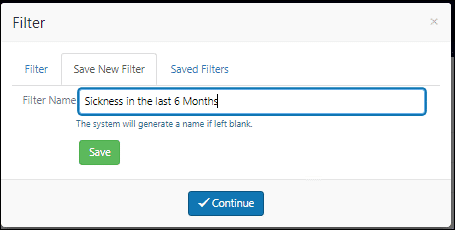
- Select Save New Filter and enter a name for the filter
- Click on Save and then close the save filter window
To reuse a Saved Filter
- Once the filter opens, select the Saved Filters tab
- All saved filters created for this area of HR (Reports or Letters) will be displayed – select the required one
- Select the Load Filter button, this will load the selection parameters previously saved
- Click Continue, this will load the report or letter with the records which the filter has selected
- A saved filter can be applied to all reports using the same Master Table and Filter
Offsetting
Offsetting enables you to set rolling date ranges for reporting and can be used for setting up reports that need to be run on a regular rolling basis. Eg an absence report could be set to always look at the previous 6 months, starting on the first day of the month 6 months ago and ending on the last day of last month. These regular reports can be automated using the Report Scheduler.
Absence Costs - Using offset dates
- When running the Absence Costs report, having created the subset of records, the Absence Costs filter is presented, enabling you to set the reporting period dates and types of absence
- This filter can be set up for a rolling period and then subsequently saved, named and then, as required, be loaded from the Saved Filters
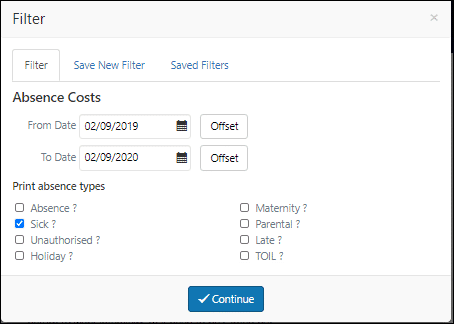
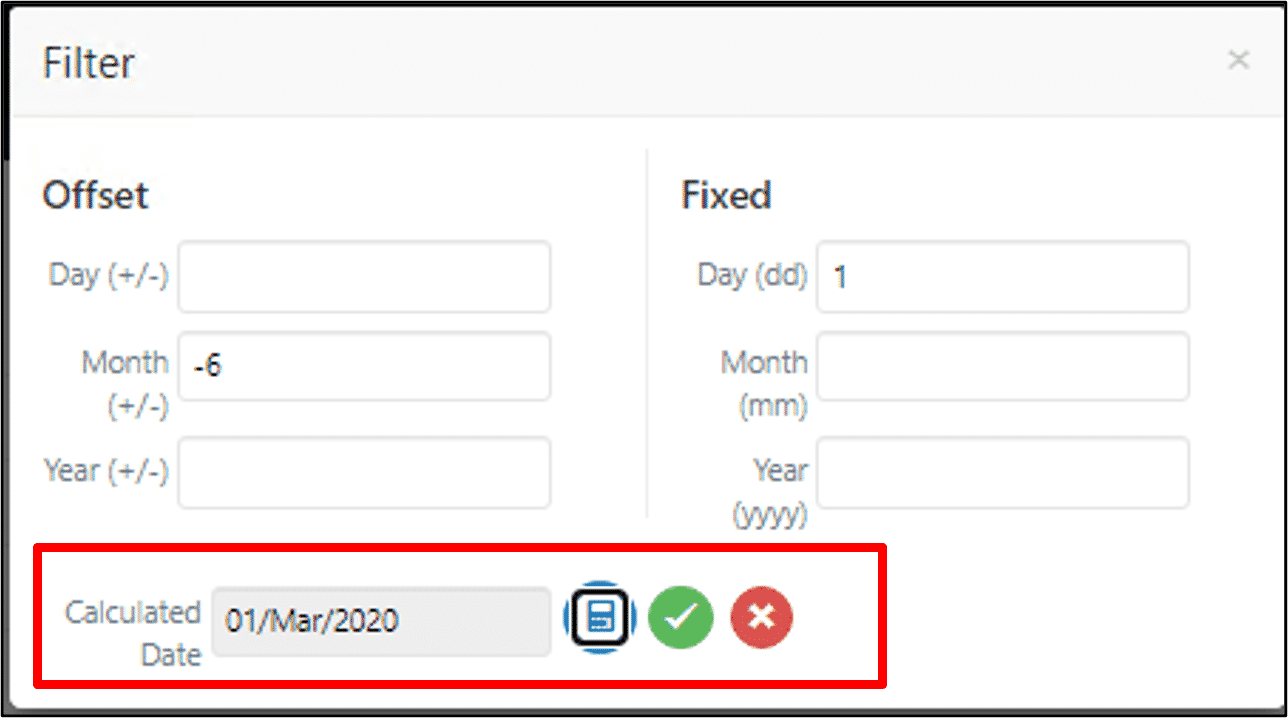
- Click on the Offset button against the From Date. Entering -6 in the offset month field calculates a date 6 months back from today, entering 1 in the fixed day field anchors the date to always be the 1st of the month. Click the calculator button to check the result and the green tick to save
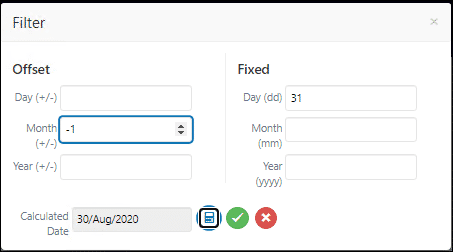
- Click on the Offset button against the To Date. Entering -1 in the offset month field calculates a date a month ago, entering 31 in the fixed day field anchors the date to always be the last day of the month even if the month is shorter
- Additional configuration of Absence Types could also be selected
- To run the report using the saved filter and offsetting, having created the subset, the filter form will appear, click on Saved Filters, select your filter from the list, click Load Filter and then Continue
- At this point HR will load the report with the selected Subset and filter applied
- To run the report using the saved filter and offsetting, having created the subset, the filter form will appear, click on Saved Filters, select your filter from the list, click Load Filter and then Continue
- At this point HR will load the report with the selected Subset and filter applied
Footer
Comments
0 comments
Article is closed for comments.