
This guide will show you how to apply a BF deadline for when any carried forward holiday must be taken, and configure whether untaken holiday is deducted from the holiday entitlement.
Contents
- Holiday brought forward deadline
- BF Deadline in practice - Absence Summary (Totals)
- Amending the BF Deadline
- Bulk Change
Holiday brought forward deadline
- Where it is permitted to carry forward holiday during the Holiday Year update, it is possible to apply a deadline for when any carried forward holiday must be taken.
- For example you may allow employees to carry forward up to 5 unused holidays during the holiday rollover, but they must take them within 3 months of the start of the Holiday Year.
- The BF Deadline (brought forward) can be set in the Holiday Entitlement Code Table.
- Go to the following area:
- Latest (left-hand) menu: Data Management > Code Tables
- Pre-2025 (top) menu: System > System Administration > Code Tables
- From the Group choose Absence > Holiday Entitlement and select the relevant Code
- The BF Deadline can be set in Days, Weeks or Months. Adding a number and selecting the relevant timeframe will then calculate the deadline date based on the linked Holiday Year Start Date.
|
Notes:
|
BF Deadline in practice - Absence Summary (Totals)
The BF Deadline will show on individual records in Absence Summary (Totals), above another slider field: BF To Action. The slider will be enabled when the employee’s Holiday Entitlement is updated and it has a BF Deadline.
- The BF Deadline also displays in the Book & View Time Off page summary bar on the right as a useful reminder for employees.
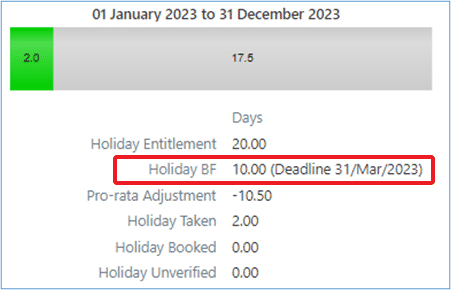
- When the BF Deadline passes, if the employee has not taken their full Holiday BF amount, the difference between what has been taken and the BF amount will be deducted during an overnight system update.
- Eg Elizabeth above has taken 3 of her 5 brought forward days before the deadline. When the deadline passes, her Holiday BF figure will be updated to 3 days, and the 2 outstanding days will be removed.
|
Notes:
|
Amending the BF Deadline
- The BF fields can be amended on an individual basis by clicking Change Holiday Entitlement. If the BF To Action slide is disabled, no change will be applied when the deadline passes.
- Eg where there are special circumstances where someone was unable to take their BF leave by the deadline and you wish to disable the slider so no action is taken. Alternatively you could extend the deadline date but keep the action slider enabled to allow them additional time to take the BF leave.
| Tip: As the Holiday BF field is overwritten, it is recommended to run the Holiday Left report after you have updated the Holiday Year and Entitlements so you have a record of the original figures before any changes are made. You may wish to create a copy of the Holiday Left report to add in the BF Deadline and BF to Action fields (from the Personal Details table) so you can include this information as part of the post rollover checks. |
| Note: If you manually backdate a BF Deadline, the Holiday BF won’t update until the overnight update process has run so check it the following day to see the change. |
Bulk Change
The BF fields are also available in Bulk Change if you wish to add them after a holiday update. See the linked guide for more details.
Footer
Comments
0 comments
Article is closed for comments.